Streaming Picture Quality Settings: Data Saver, Best Quality, and Bandwidth Explained
There is no single button for better picture quality: how per-profile playback settings, mobile data controls, and your TV chain work together.
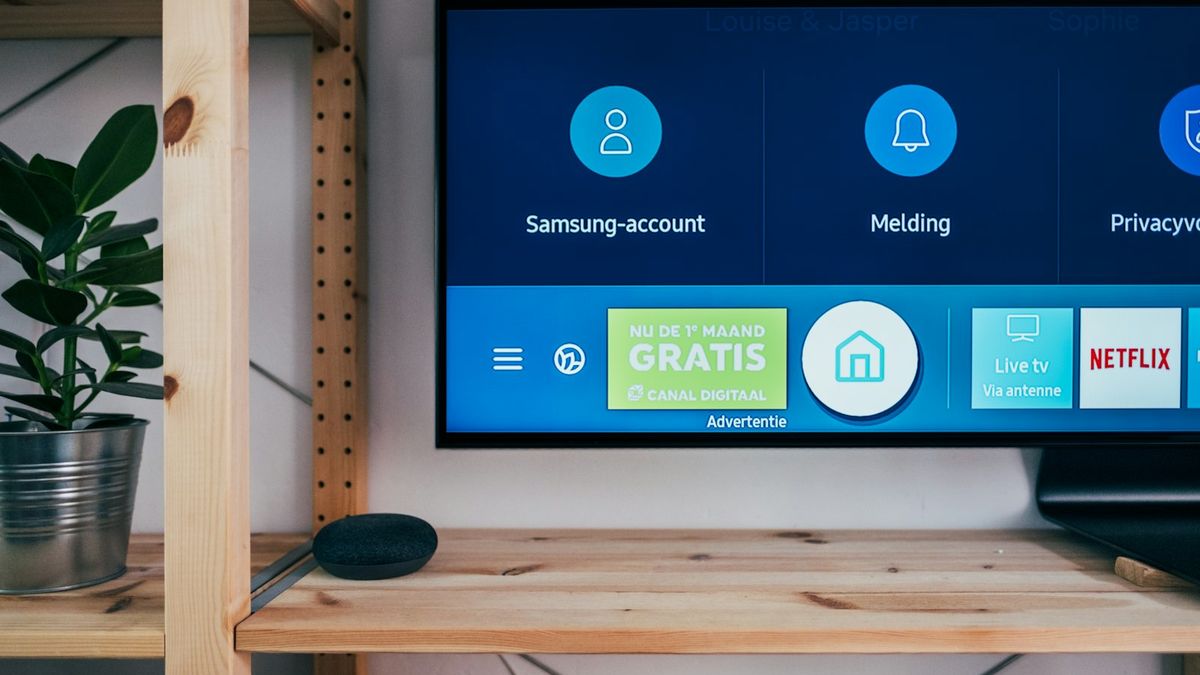
If your stream looks soft, the fix is rarely one setting. Picture quality depends on your plan, the title, your device, your connection, and your playback settings all at once, and most services do not offer a manual resolution picker. What you can control is how much data each profile may use, how the mobile app behaves on cellular, and whether every link between the stream and the screen supports the quality you want. This guide uses Netflix's published settings as the worked example, because Netflix documents them most clearly, but the same layers apply on other services.
Per-profile playback settings: the setting most people miss
On Netflix, data usage is set separately for each profile, so one profile can look sharp while another on the same account looks soft. In a browser, open the Account page, select Profiles, pick the profile you watch with, and open Playback settings. Choose Low, Medium, High, or Auto; the preference saves automatically. The setting governs data use rather than selecting a guaranteed resolution. Netflix suggests High or Auto for 1080p and 4K, and Medium, High, or Auto for 720p.
Netflix's published figures, checked in October 2026, are per device: Low uses about 0.3 GB per hour, Medium about 0.7 GB per hour, and High up to 1 GB per hour for standard definition, 3 GB per hour for HD, or 7 GB per hour for 4K. Auto adjusts to the connection and has no fixed hourly figure. Choosing High only removes the profile's cap; it cannot go beyond what your plan, the title, your device, or your network allows.
Mobile data: a separate control with its own options
Cellular streaming has a separate control in the Netflix app, distinct from the browser profile setting and from download quality. Open the app, tap My Netflix, tap the profile name, then App Settings, and under Video Playback tap Cellular Data Usage. The options are Automatic, Wi-Fi Only, Save Data, and Maximum Data. Automatic uses about four hours of viewing per gigabyte, Save Data about six hours per gigabyte, and Maximum Data can use 1 GB every 20 minutes or more, depending on device and network. Netflix recommends Maximum Data only with an unlimited data plan, and Wi-Fi Only prevents cellular streaming entirely. If a choice is unavailable, check whether Automatic is enabled or downloads are pending.
The account-level playback setting also limits mobile streaming, so the two controls work together. For a capped plan, the sensible pairing is Save Data on the phone and Medium or Low on the profile used away from home, while the living-room profile stays on High or Auto.
Bandwidth: what your connection needs to deliver
Netflix adapts to the speed of your connection to keep playback going, and a stream can begin at a lower resolution and improve after a short time. Netflix recommends a stable connection of at least 3 Mbps for 720p, 5 Mbps for 1080p, and 15 Mbps for 4K; these are recommendations, not guarantees, and a slow or unstable connection can hold quality down even when every setting is correct. Use wired internet or Wi-Fi when available, and check your speed in the Netflix app on supported mobile devices or at Fast.com in a browser.
Bandwidth is shared. A 4K stream running while someone else is on a video call and a game is downloading will fight for the same pipe, and adaptive playback will drop quality to keep everything moving. If evenings look worse than mornings, congestion in the home, not the service, is the likelier cause. Give the stream a moment after playback starts before judging quality.
Your TV chain: plan, title, device, cable
For 4K or HDR, every link has to support the desired quality: the plan, the title, the display, the streaming device, the receiver, the HDMI port, and the cable. Check that your plan includes the quality you want and that the title offers it; Netflix's title details page shows the quality available on the device in use. For the relevant Premium 4K and HDR setups, Netflix specifies a Premium High Speed or Ultra High Speed HDMI cable and an HDMI port supporting HDCP 2.2 or later. A cable change helps only if the cable is the limiting component.
HDR is separate from resolution, and Netflix describes an HDR On/Off control on supported devices. Some mobile devices may not stream HDR while in low-power mode or over cellular.
A blurry-picture checklist
1. Check the title details label. It reflects the quality available on the device currently in use.
2. Check your plan. Confirm it supports the quality you want; playback settings are not a resolution selector.
3. Check the profile's playback setting. Low or Medium caps data and can cap clarity. Try High or Auto.
4. Check speed and stability. Compare your connection against the 3, 5, and 15 Mbps recommendations for 720p, 1080p, and 4K.
5. Allow a moment for adaptive playback. Resolution may rise after playback starts.
6. Check the whole TV chain. Display, streaming device, receiver, HDMI port, and cable must all support the target quality. Work through the list in order and you will usually find the weak link without upgrading anything.